
Quick answer
Work through it in order: 1) check volume and the silent switch/Action button, 2) disconnect Bluetooth, 3) restart, 4) update iOS, 5) remove the case, 6) eject water with a low-frequency tone, 7) gently brush dust out of the grille, 8) test left/right speakers. If sound is still distorted at every volume, book a repair.
Most iPhone speaker problems aren't hardware failures. They're audio routed to the wrong device, water in the grille, or years of pocket lint. This guide goes from the fastest fixes to the most involved, so you can stop as soon as the sound is back.
On this page 5 sections
How to fix iPhone speaker: 8 fixes in order
- Check volume and silent mode. Play a song and press volume up. Ringer silent mode mutes ringtones and alerts, not media.
- Disconnect Bluetooth and AirPlay. Open Control Center, tap the AirPlay icon on the music tile and choose iPhone.
- Restart your iPhone. Press and hold side + volume button, slide to power off, then turn it back on.
- Update iOS. Settings → General → Software Update. Audio bugs are sometimes fixed in updates.
- Remove the case. Some cases partly cover the bottom speaker or trap moisture.
- Eject water with sound. Speaker down, 70–80% volume, play a low-frequency water eject tone for 30–60 seconds. Repeat 2–3 times.
- Clean dust from the grille. Brush gently with a soft, dry toothbrush. Never push anything into the holes.
- Test both speakers. Use a stereo left/right test to check the earpiece and bottom speaker separately.
Steps 6–8 in Clear Wave
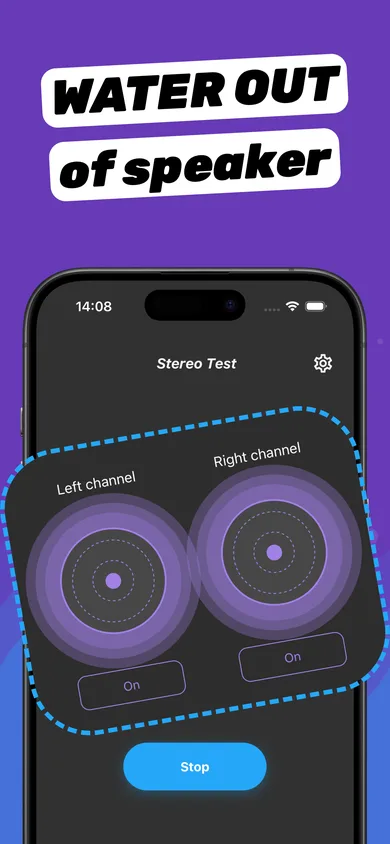
- Water Eject session. Start the cleaning session from the main screen with the speaker facing down.
- Stereo Test. Turn on Left channel, then Right channel. On iPhone, one is the earpiece and one is the bottom speaker.
- Tone Generator sweep. Swipe up/down through frequencies to find rattles or dead ranges.
- dB Meter check. Compare loudness before and after cleaning to see the improvement.
iPhone speaker locations
Every iPhone since the iPhone 7 has two speakers: the main speaker in the bottom edge grille and the earpiece at the top of the screen, which doubles as the second stereo speaker. If only one sounds off, the problem is local to that speaker — usually water or dust. A left/right speaker test tells you which one.
When to go to Apple or a repair shop
- Crackling or buzzing at every volume, even after cleaning and drying for 24 hours.
- No sound from one speaker at all in the stereo test.
- The phone had a hard drop just before the problem started.
- Saltwater, sugary drinks or other liquids got inside and sound keeps getting worse.
Liquid damage isn't covered by Apple's standard warranty, so check AppleCare+ coverage first.
Questions
Why is my iPhone speaker so quiet all of a sudden?
The most common causes are water in the grille after rain or a shower, audio going to a Bluetooth device, or dust build-up. Try the water eject and cleaning steps above.
Can I fix my iPhone speaker without taking it apart?
Yes, for water and dust problems. Sound-wave cleaning and a soft brush fix most cases. Physical damage requires a repair.
How do I know if my iPhone speaker is broken?
If it crackles or buzzes at all volumes after cleaning and drying, or one channel is silent in a stereo test, the speaker is likely damaged.
More answers